
<body><script type="text/javascript"> function setAttributeOnload(object, attribute, val) { if(window.addEventListener) { window.addEventListener('load', function(){ object[attribute] = val; }, false); } else { window.attachEvent('onload', function(){ object[attribute] = val; }); } } </script> <div id="navbar-iframe-container"></div> <script type="text/javascript" src="https://apis.google.com/js/platform.js"></script> <script type="text/javascript"> gapi.load("gapi.iframes:gapi.iframes.style.bubble", function() { if (gapi.iframes && gapi.iframes.getContext) { gapi.iframes.getContext().openChild({ url: 'https://www.blogger.com/navbar/8173119794321455480?origin\x3dhttp://powerrambling.blogspot.com', where: document.getElementById("navbar-iframe-container"), id: "navbar-iframe" }); } }); </script>

Remember Blank? Find Out What Became of Them, and Every Other Band That Broke Up

Saturday, March 10, 2007 by Power Rambling

If you listen to any other kind of music than the mainstream schlock on the radio, then you know how hard it can be to keep up with bands. For instance, when I lived in DC I saw a band called Blank four or five times. They were great. Every time I saw them they were opening for someone else, and every time they were better than the headliner. But I forgot to ever buy one of their seven inches. Or maybe I never saw one for sale. Doesn't seem likely, but I really can't remember.

But now there's a new problem. Try searching Google for a band called Blank. The results you get are ridiculous. Only recently have I been able to find any good info on Google. I didn't know the names of any of the band members, and while I could remember what the covers of a couple of records looked like, I couldn't remember the names of any of them. Eventually I found a little bit of info: the singer's name. With that and a little more digging, I found his new band. But we'll get to that in another post. This article is about the good news.

There is a new website called BandtoBand.com, and it is made for situations like this. You can enter a band name and it will give you the names of members, and what other bands they have been in. Here is an example from their front page:
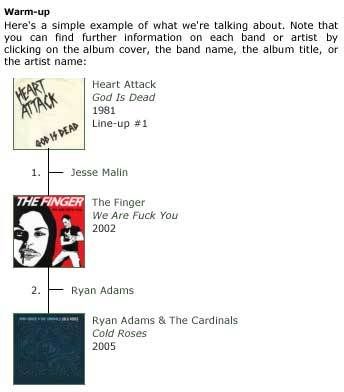
From the front page of BandtoBand.com


But it gets better than that. Let's say I want to find out what bands Tonie Joy has been in. OK I could just go dig around on Google, and I would probably find every band he's ever been in (I would, and it's because they are all good). Or I could enter him on BandtoBand and get pretty pictures. See the incomplete picture below right, also a screenshot of the website. Search Results from BandtoBand.com
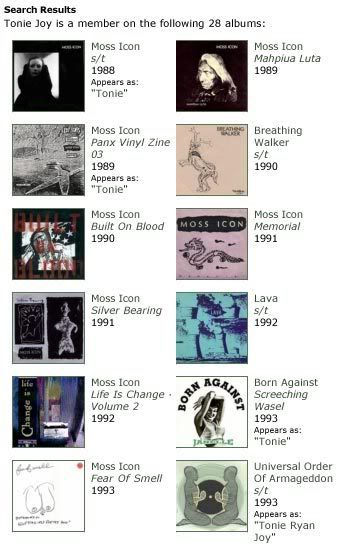
So now I know what bands he was in. I knew already, but I actually didn't know all of the records. But this is where it gets good. I know Tonie Joy was in Born Against with Sam McPheeters, cause if I click on the Born Against record from the previously mentioned image on the right, I find every single band member who recorded with Born Against (including their pseudonyms). I can find out what other bands Sam was in by clicking on his name. It's that easy. You could pretty much go forever this way, one band to the next. But what if there isn't a direct link between two bands?


My Favorite Part
Let's say I want to know if Tim Kinsella (of Cap'n Jazz, Owls, Joan of Arc, etc.) ever played with any of the guys from Native Nod. Look for the Create Map box on the right side of the page, about halfway down.
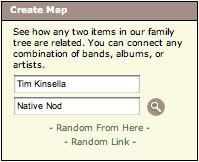
Another Screenshot


Search those names and you have this ↓
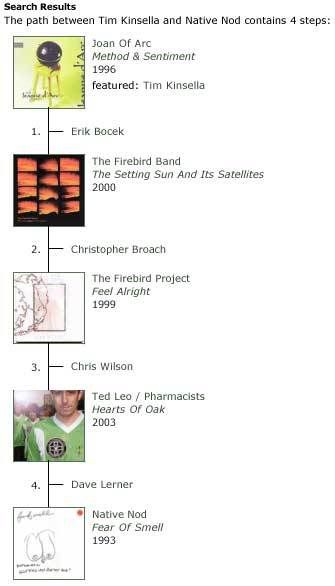
Screenshot Again - BandtoBand.com

It tells us that Eric Bocek was in Joan of Arc with Tim Kinsella and The Firebird Band with Christopher Broach. Broach was also in The Firebird Project with Chris Wilson, who was (or is) in Ted Leo and the Pharmacists, which also contains Dave Lerner, who was in Native Nod (so was Ted Leo, he is the brother of Chris Leo, the singer of Native Nod). Whoops. That was Danny Leo, another Leo brother. So we found a link. Not direct, but not that far away, either.

This is a great tool for finding out what happened to bands you loved in the past that broke up without a trace. Expect a slew of posts in the not-too-distant future about bands I find through this site. Have fun! Find somebody good. And please, let me know what you find, even if it turns out to be something that is, in retrospect, painfully obvious.
Leave a comment below.

Labels: , , , , ,

Why You Should Be Using Firefox As Your Web Browser

Thursday, March 1, 2007 by Power Rambling

Because anything is better than Internet Explorer. No, really. But in my opinion, Firefox is the best web browser out there, and I am not alone.
For starters, Internet Explorer is weak. It's a part of the Windows operating system, so if something affects Explorer, there's a good chance other things will be affected as well. That's why you have to have a bunch of different anti-spyware and and anti-virus programs (well, it's part of the reason). Anyone who has had to fix (or more likely, recover from) a serious spyware infestation knows that Internet Explorer is usually the first thing effected. Firefox is not part of Windows, so it may not have any problems, even from existing spyware. If you don't already know, spyware is a serious threat. Some spyware actively looks for your personal information, which later may be used by identity thieves. Firefox is not the answer to spyware, but it is a means to better protect yourself and your computer.

Browsing


Most of my friends don't think too much about how they browse. I can't say I blame them; it's boring. But there are certain things Explorer (in versions previous to 7) does that make web browsing much more difficult than it should be. Firefox is the answer. Let's say that you are looking at a page with lots of links on it (like, say this one). You can either:
  • Click a link, which will then open in the same window, and then click Back to get back to the page with the links

  • or
  • Right click a link and open it in a new window, which then covers up the original page. It's a better method because you don't have to leave the original page, but if you want to see a bunch of links, you keep having to click on the original page to get back to the links.

    Firefox solves this problem with Tabs (Internet Explorer 7 now has tabs too, as well as Safari, the default Mac web browser). Rather than opening links in a new window, they open in new tabs, and you can browse them at your leisure.
    Firefox Tabs
    It's much easier than anything in older browsers. You can open links in a new tab by holding the Command (Apple) key while clicking (on a Mac), or by clicking with the scroll wheel button (in Windows). You can also choose to have new windows open in new tabs. Check Firefox's Preferences. Tabs are my most-used feature of Firefox, but there is something else. If you want to know why Firefox is better than Internet Explorer 7, well, I'll let the tech gods at Cnet answer that one.

    Extensions


    Extensions are add-ons to Firefox. I already mentioned one in the How to Find Shows in Your Area (and Remember Them) post. But there are tons of different ones available, for almost every conceivable purpose. I use Down Them All to quickly download all the links of one (or multiple types) at once and put them all in the same place on my computer. This is really handy with mp3 blogs. I can download every mp3 on the page with two clicks. UnPlug is another handy download tool, but all I use it for is YouTube videos and the like. Firefox has pages and pages of extensions free for download.

    There are lots of ways to customize Firefox. Use the link in the right column to download Firefox and let me know what you think in the comments. Also, if you use any extensions, leave a comment and let me know. Thanks.

    Labels:

  • What's an RSS?

    Monday, February 26, 2007 by Power Rambling

    More and more websites are offering RSS feeds to distribute their posts. If you have never heard of RSS, or have but don't know what to do with it, then this is the tutorial for you.

    What RSS Means


    It means Really Simple Syndication. But what it really means is that you can check out websites without having to go to them. This is particularly handy if you want to check up on some sites regularly. It can really save you a lot of time.

    Where to Find Feeds


    If you use Firefox as your web browser (and read this article to find out why you probably should be), then you have an easy method for looking at RSS feeds (this is not exclusive to Firefox, but it's one of the two methods I use). Look in the Address Bar. See the little orange thing?

    RSS Feed Icon

    The Firefox Method


    If you click on it Firefox will show you the feed and give you the option to subscribe to it using Live Bookmarks. Click "Subscribe Now," and place the bookmark in your Bookmarks Toolbar. You now have a one click method to look at that website. Click on your live bookmark (RSS Feed). See that list of articles? Click on any of them and you will be taken to the full article. Are you starting to see how handy this can be?

    My Method


    I use Firefox, and have a few Live Bookmarks set up, but some of the sites I like to check daily have way too many articles to be easily dealt with. There's just no way to keep up with them, and Live Bookmarks only shows you a current list, not a total one. To avoid missing posts, I use Google Reader. If you have an account with Google already (i.e., with Gmail, Google Calendar, Google Documents and Spreadsheets, or any of the other Google services, then you already have access to Google Reader with the same username and password you already use. See other posts on this blog for more about the other Google services.

    Once you are logged in to Reader you can search for RSS feeds from websites you would like to check, add them, organize them, and read them. You can Share items from your feeds on your blog, or Star them to look at again later.

    Adding Feeds to Google Reader


    It's easy. If you are browsing on some site, let's say it's Boing Boing (one of my favorites), and want to add their feed to Google Reader, just click on the little orange thing in the Address Bar in Firefox. When it brings up the feed page, copy the address and then go to Google Reader. Click on "Add Subscription" and paste the address in. Hit Enter and you're done! You have added a feed. Alternatively, you can just search for feeds. Click on "Add Subscription" and type in your search terms. Google makes it easy to add right from the results.

    Organizing Feeds


    There are a lot things you can do with Reader once you start adding feeds, but I think the most sensible is organizing feeds into folders. It's easy. Click on any of your feeds, and then look right above where it loads. See "Feed Settings?" Click on it and you can create folders and add your feeds to them. I use four folders: Arty, Newsy Time-Wasters, Tech, and Blogging. But you can use as many as you want, and name them whatever you want.

    Here are my favorite two features of reader: Items are automatically marked as read as you scroll by them, so they
    drop out of the list of total unread items, and will no longer appear at the top
    of each feed, and you can browse your feeds all at once, feed-by-feed or a folder at a time

    Google Reader will also let use key commands to control it. I'm not going to go into it here, but Lifehacker has a great post about it.

    My Feeds


    This is a very short list of some of the sites I subscribe to:

  • Boing Boing
  • Digg
  • Del.icio.us
  • Fark
  • LifeHacker

    What feeds do you subscribe to? Have any questions about RSS? Leave a comment below.

    Labels:

  • Learn How to Use Torrents to Quickly Download Files

    by Power Rambling

    BitTorrent

    Torrents are a means of easily and quickly downloading files from the internet. It's usually faster than peer-to-peer programs like Limewire and Kazaa because it allows you to download the same file from multiple people at one time. It doesn't allow them to see what you have on your computer. But it does allow others to download the file from you. Torrent files are like empty boxes that know where their contents are.

    They way it works is as follows: You download the torrent file (we'll get into where you find them later on) of a file you want to download and open it with a client program. That program connects to a tracker, which points it to other users who are downloading or have already completed downloading the file your torrent specify.

    This means you have a fast, secure way to download. Instead of searching for files on Limewire and Kazaa and infecting your computer with viruses and spyware while trying to find the version of the new Nine Inch Nails song that isn't a fake, you quickly download it from the 3000 other people who thought the same thing. Of course, that's stealing, and bad taste besides. But I'm not gonna lecture anyone on copyright.

    Finding Torrents

    Finding torrents is the easiest part. You can search on a website like The Pirate Bay,ISOHunt, Demonoid , or ScrapeTorrent. Keep in mind that many of the torrents available on these sites are for copyrighted material. Once you have found a torrent of whatever it is you are looking for, you need a client to download it.

    Downloading

    There are a lot of different BitTorrent clients out there, and it will be up to you to figure out which one to use. Often the only difference between one client and another is just the visual interface. I use Azureus, but there are a lot of other ones out there. Another popular and Mac-only client is Transmission. Try Download.com to find other torrent clients. Sorry I can't recommend any Windows ones (besides maybe Azureus), but I just haven't used any any. If you find or know of any good clients for Windows, please let me know in the comments below.

    That should get you started. Now here is a link to a torrent of one song each from each of the 739 bands playing at SXSW:


    Torrent file - 3.1GB

    This file is large, but in Azureus, you have the option of not downloading files you don't want. When you add the torrent to Azureus, it will pop up a window asking where you want to download it. The bottom half of the window shows the contents of the torretn. Uncheck anything you don't want. Leave a comment if this helps you out, or if you need to know how to get the files you downloaded into iTunes or whatever program you use.

    Labels:

    RSS

    • RSS Feed
    • Check the Tutorials section to learn how to use this and other RSS Feeds

    Search

    Recent Posts

    Recent Comments

    Archives

    Tutorials

    Tampa Calendar

    Email Power Rambling


    Music Blogs - Blog Top SitesMusic Blogs -  Blog Catalog Blog DirectoryBlogarama - The Blog DirectoryMusic blogs Blog Directory Top Blogs
